Jarvi + Claude — your recruitment assistant in natural language
MCP (Model Context Protocol) is the connector that lets Claude act directly in Jarvi. In a single instruction written in plain language, Claude creates a company, searches for profiles, fills a job posting, drafts a candidate presentation and sends an email to your client — no copy-pasting, no switching tools.
Prerequisites
Before connecting Jarvi to Claude, you need:
- The Claude desktop app (Mac or Windows)
- A paid Claude account (Pro, Team or Enterprise)
- An active Jarvi account
Claude only has access to your Jarvi permissions — never more. Your team’s data stays protected.
Connect Jarvi MCP
- Open the connection settings
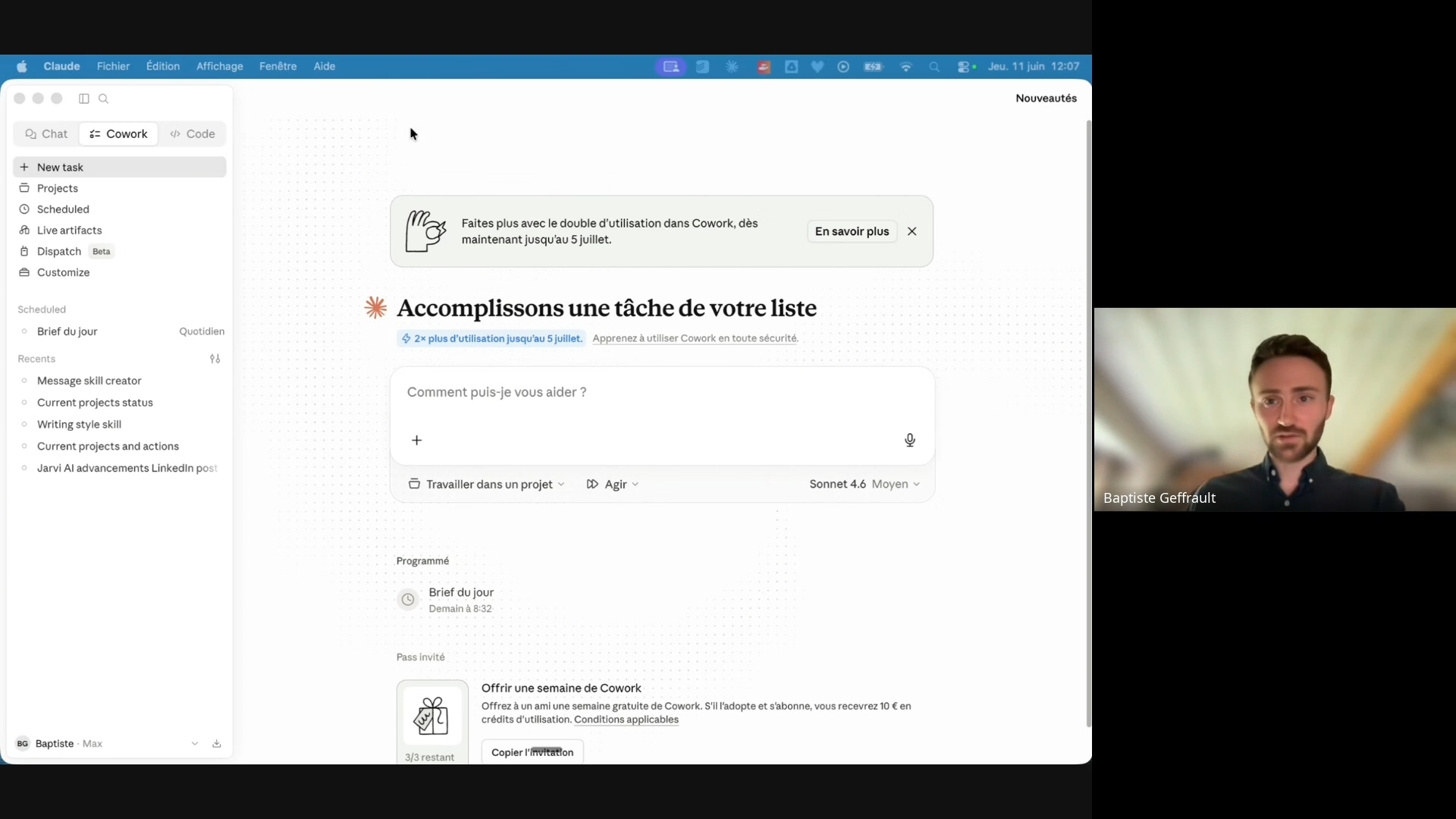
- From the Claude app, select Cowork then click Customize to personalize the tool.
- Add the Jarvi connector
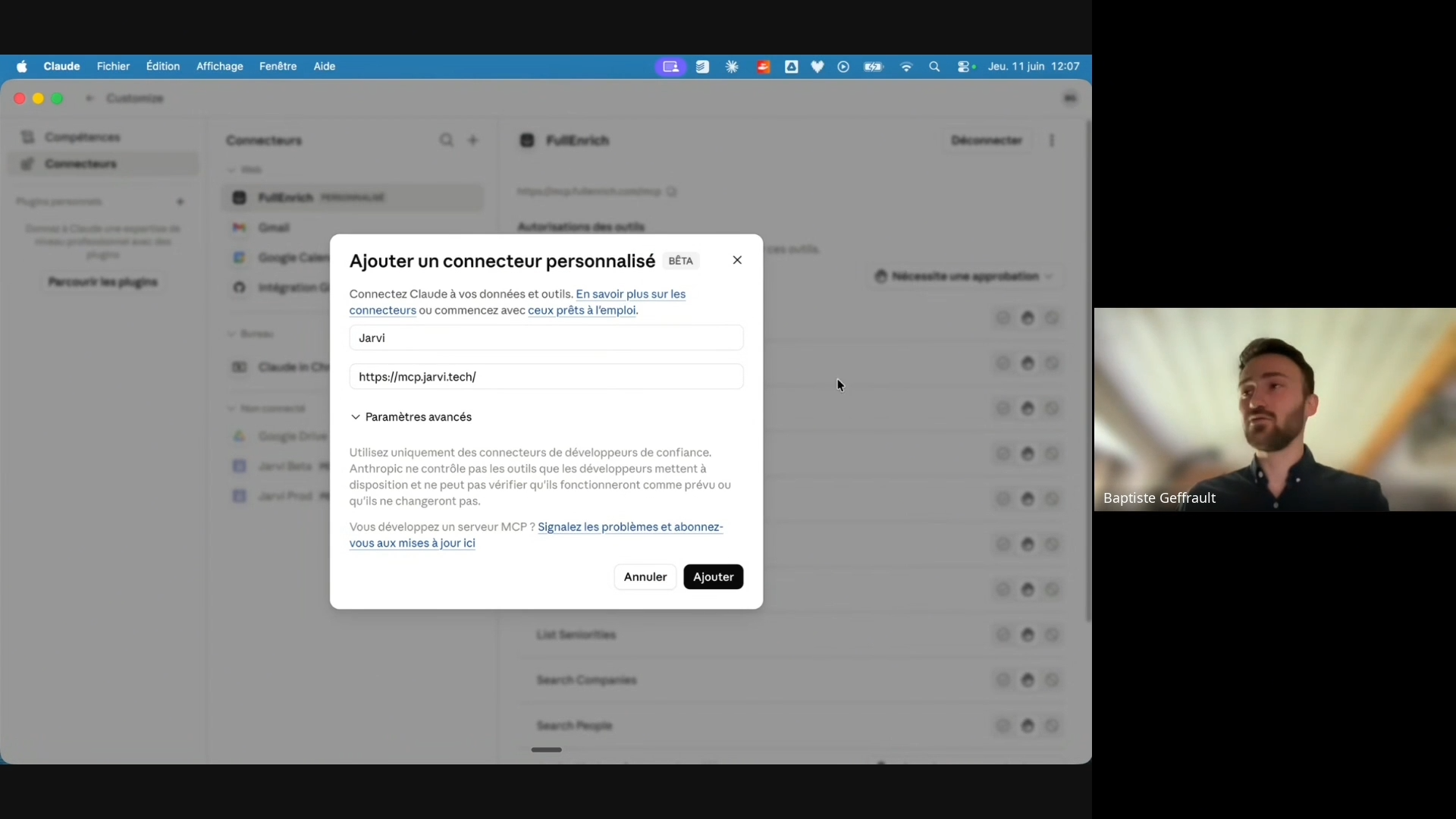
- Click Add then Add a custom connector.
- Enter the name Jarvi and the URL:
https://mcp.jarvi.tech/
- Authorize the connection
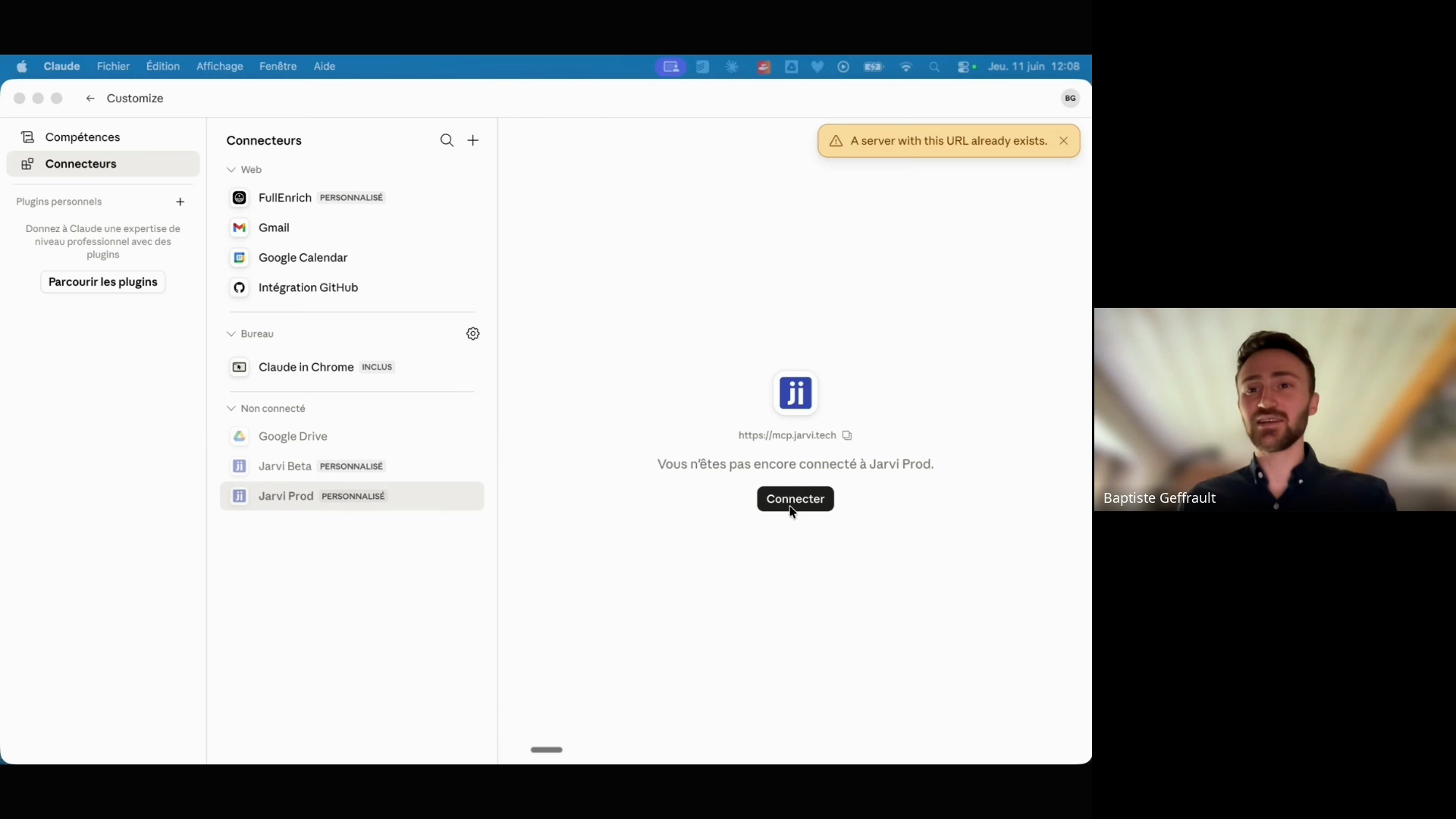
- Click Add to confirm. Accept the identity verifications and authorize access to your Jarvi account when the window opens.
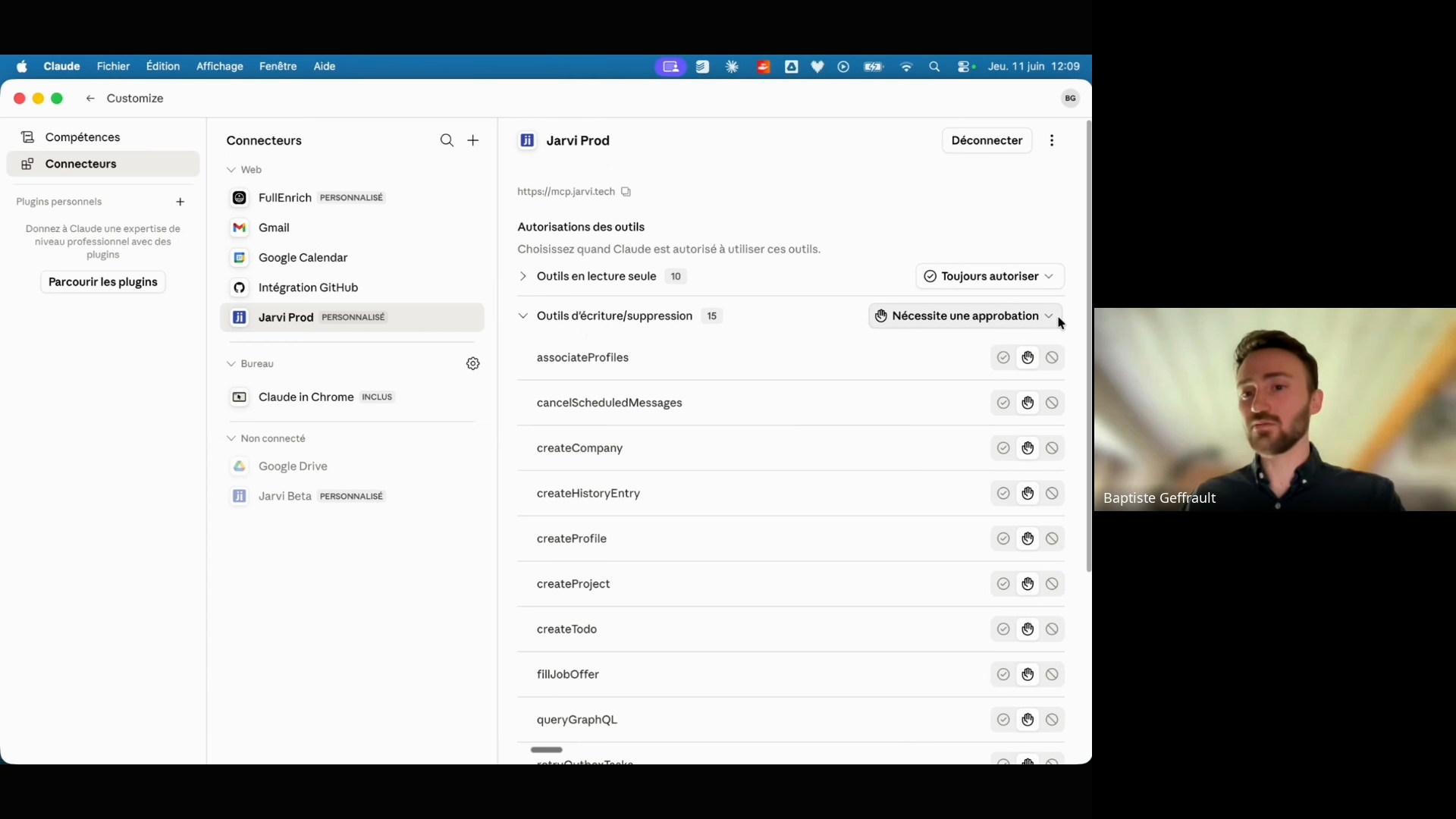
- Check the permissions
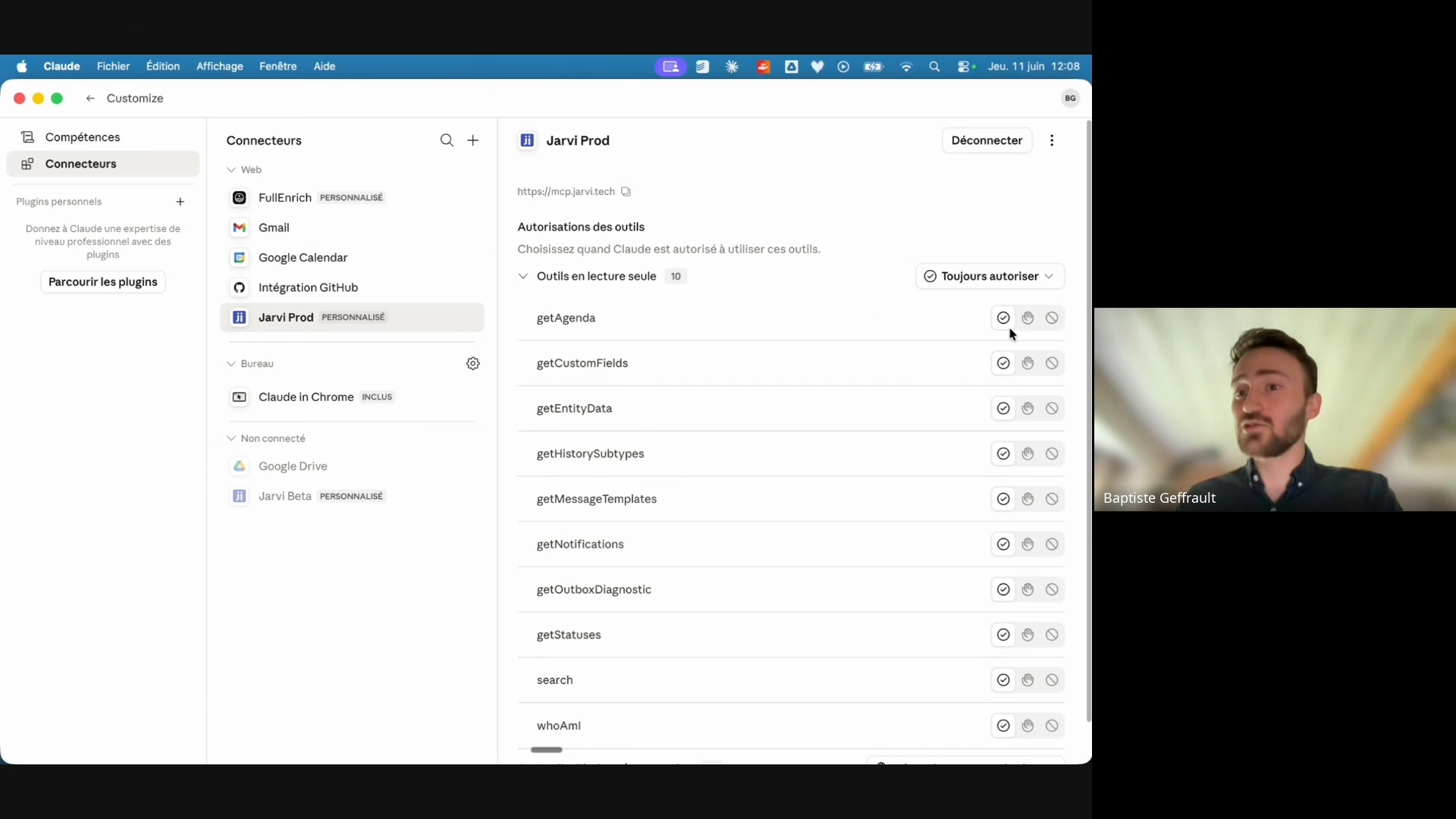
- Keep read-only access for profiles and projects, and keep mandatory approval for write and delete operations.
- Enable the connector in your conversations
- To use Jarvi in a chat, click the + at the bottom left (or type
/), then Connectors, and enable Jarvi.
- To use Jarvi in a chat, click the + at the bottom left (or type
Test: send “Who am I in Jarvi? Show me my agenda for today.” — if it responds with your name and your agenda, you’re connected.
Create your recruiter skills
A skill is a set of instructions you write once to teach Claude your way of working. It then applies them consistently on its own. Zero code.
How to: open a conversation and say “I want to create a skill for…”. Paste a few real examples (your best emails, a typical candidate presentation). Answer its questions. Claude writes the skill. You activate it in Settings → Capabilities → Skills, test it, and adjust.
“My writing style” skill
So that every message sounds like you:
Create a skill “My writing style”. Here are 5 emails I wrote. Analyze my tone, structure, and key phrases, then apply this style to every message. Rules: formal tone, max 120 words, one question at the end, signature “Best regards, [First name]”.
“Recruiter process” skill
So that Claude follows your method end to end:
Create a skill “Recruiter process” that follows my method: 1) qualify the need with my questions, 2) source from my Jarvi database, 3) score profiles /10 (skills, sector, soft skills, availability), 4) draft an anonymous presentation per candidate from their profile, 5) draft the client email in my style, 6) create a D+2 reminder. Here are my qualification questions and a presentation I like.
In the skill, document the fact that I work with Jarvi MCP: list which Jarvi actions to use and for what (search profiles/companies/projects, read a profile, create a company / contact / profile / project, attach profiles to a project, fill a job posting, send a message, log a call report, create a reminder, check the agenda).
Once both skills are created, your “Recruiter process” already writes in your style. You have an assistant that thinks and writes like you.
Schedule an automatic morning brief
Every morning, Claude cross-references your Jarvi agenda, your reminders (and your inbox if you have a Gmail connector) and prepares an actionable brief.
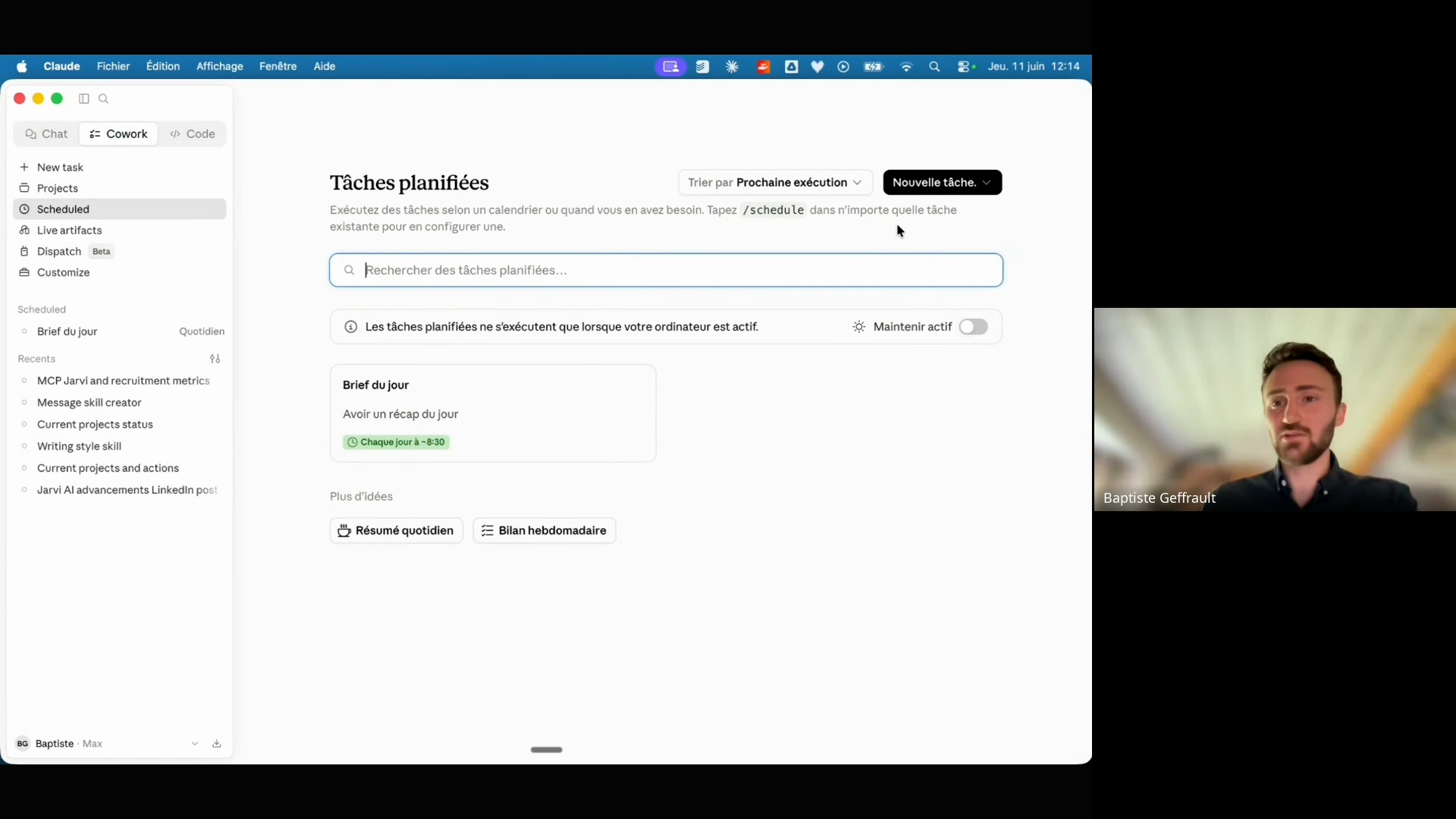
How to: in the Claude app, go to the Cowork → Schedule tab → + New task. Name it, paste the prompt below, choose Daily or Weekdays at your preferred time, then Save.
You are my recruiter assistant. Prepare my daily brief, short and actionable.
- AGENDA — My Jarvi agenda for today: interviews and meetings with time, candidate/client and related project.
- JARVI — My pending todos and reminders. Highlight: candidates to follow up (D+2/D+5 overdue), responses to handle, projects with no activity for 5 days.
- EMAILS (only if a Gmail connector is active) — My inbox from the last 24h. Keep only recruitment-related (candidate responses, client requests, rejections). Ignore the rest. If no email access, skip this step.
- SUMMARY — At the top, 5 lines max: “Today you absolutely must…”. Then the details.
- ACTIONS — For each urgent follow-up/response, draft a message in my style (don’t send it, propose it). Keep it concise, short bullet points.
The task runs when your computer is on and the app is open. If your Mac is off at the scheduled time, it runs when it wakes up.
Ready-to-use recruitment prompts
Adapt the [brackets] to your case and paste directly into Claude.
Safety reflex: for any outgoing message, ask Claude to propose a draft first (“suggest”, not “send”). You review, you validate.
Candidate side (AI Act): recruitment is a “high risk” use case. AI helps you read and compare, but does not rank, exclude or decide for you. Selection remains a human choice — yours.
Full workflow — from a LinkedIn job posting
Here is a LinkedIn job posting: [URL].
- Get the posting content.
- Identify the contact/recruiter (otherwise search LinkedIn then Google; deduce the email from the firstname.lastname@domain.com format).
- Create the company, contact (with email) and project in Jarvi; attach the contact.
- Fill the job posting from the ad.
- Find the 3 best profiles in my database.
- Draft a prospecting email to the contact: present the 3 profiles, explain why each one fits, and suggest a call.
If you use the Claude Chrome extension, open the LinkedIn job posting in your browser and launch the prompt directly from the extension — Claude will have access to the page content.
Full workflow — from a call report
I just called [First Last] from [Company], the call report is on their profile.
- Find the LinkedIn URL for [Company].
- Create the company and project; attach [First name].
- Fill the job posting from the call report.
- Find the 3 best profiles in my database and attach them to the project.
- Draft an anonymous presentation of each candidate (from their profile) and send them to [First name] with the rationale for each.
- Create a D+2 reminder to follow up with [First name].
Quick prompts
| Goal | Prompt |
|---|---|
| Qualify a need | “Generate 7 questions to ask the client to qualify this need: key skills, culture, challenges, selection criteria, deal-breakers.” |
| Find the right contact | “Who is the HR Director / recruitment manager at [company]? Find their LinkedIn and deduce their email from the standard format.” |
| Compare to help decide | “Compare these 3 profiles against this job posting, criterion by criterion (skills, sector, soft skills, availability), with factual justification citing the profiles. Present a summary; do not make any decision and do not modify anything in Jarvi.” |
| Prepare an interview | “From the current profile and project, prepare a framework: fit summary, 2-3 strengths questions, 3-4 gap questions, 1 scenario.” |
| Follow up without being pushy | “I sent these profiles to [first name] 5 days ago with no response. Draft a short, warm follow-up that adds something new (market insight, open question).” |
| Candidate comparison reading | “For the profiles in the current project, prepare a comparative reading against the job posting: 2-3 strengths, 2-3 points to verify. Do not rank, do not exclude anyone, do not change any status.” |
| Reactivate dormant profiles | “Search my database for candidates who match project [X] but haven’t been contacted in 3 months. Suggest a reactivation message in my style.” |
| Automatic call report | “Here are my notes from the call with [name]: [notes]. Write a clean report, log it in their Jarvi profile, and create a follow-up todo.” |
The Jarvi integration with Claude frees you from repetitive tasks and optimizes your daily workflow — summaries, prospecting, data enrichment and assisted writing. Experiment, adapt your skills and share your use cases to save even more time. For any connection issues, contact the Jarvi support team.